PDF to WordPress Page: When HTML Is the Better Accessibility Fix
Every PDF accessibility conversation starts the same way: tag it, fix the reading order, add alt text. That's the right call for plenty of documents. For a document residents mostly read on a phone, in a browser, it's usually the wrong one.
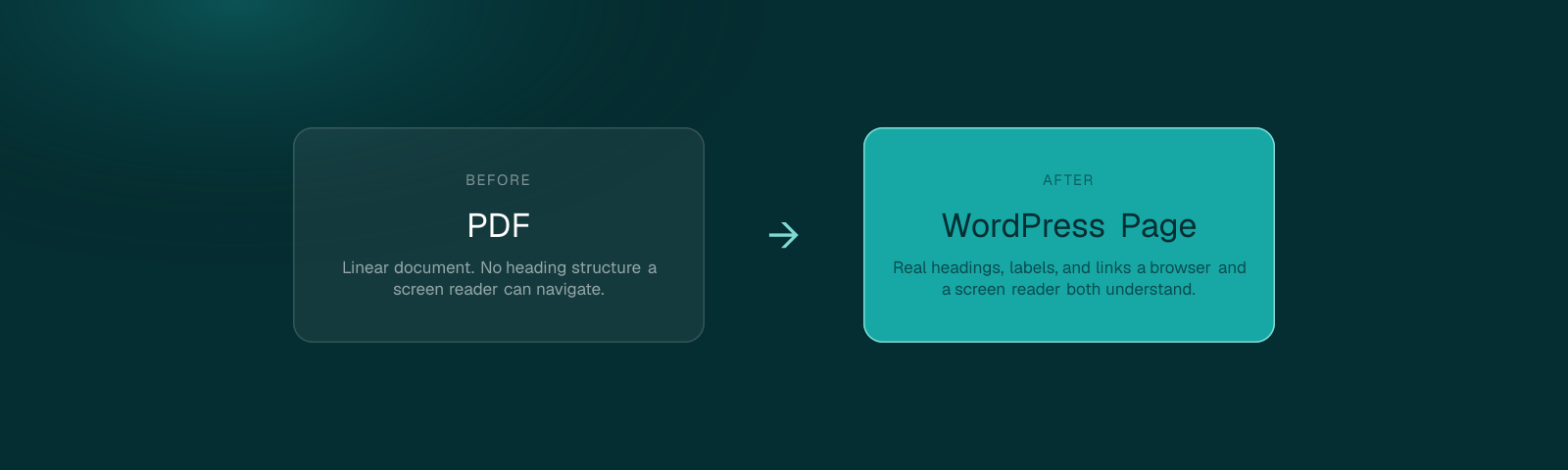
A PDF is a page layout format wearing a document's clothes. It was built to reproduce a printed page exactly, pixel for pixel, on any device. That's a strength for a form someone prints and signs. It's a liability for a benefits explainer, a program FAQ, or a "how to apply" page that a resident is reading on a five-inch screen with a screen reader running. Remediating that second kind of PDF, tagging it correctly instead of rebuilding it, treats the symptom and leaves the format problem exactly where it was.
1Why Online-First Information Shouldn't Live Only in a PDF
A PDF built for print has a fixed layout for a reason: it needs to look identical whether it's opened on a laptop or printed at a copy shop. That same fixed layout is exactly what breaks on a phone. Text doesn't reflow to fit the screen. A two-column layout forces constant side-to-side scrolling. Font sizes stay locked at whatever the original designer chose for an 8.5-by-11 page, not a 6-inch screen.
A screen reader user hits a second, separate problem. Reading order in a PDF often follows how objects were placed on the page during design, not how a sighted person would logically read it, which means a screen reader can announce a sidebar caption before the paragraph it's describing, or jump from a header straight to a footnote. WCAG 2.1 AA requires a meaningful, programmatically determined reading order. A lot of PDFs, especially ones exported from page-layout software rather than written directly, never had one to begin with.
2PDF Remediation Versus HTML Conversion: How to Choose
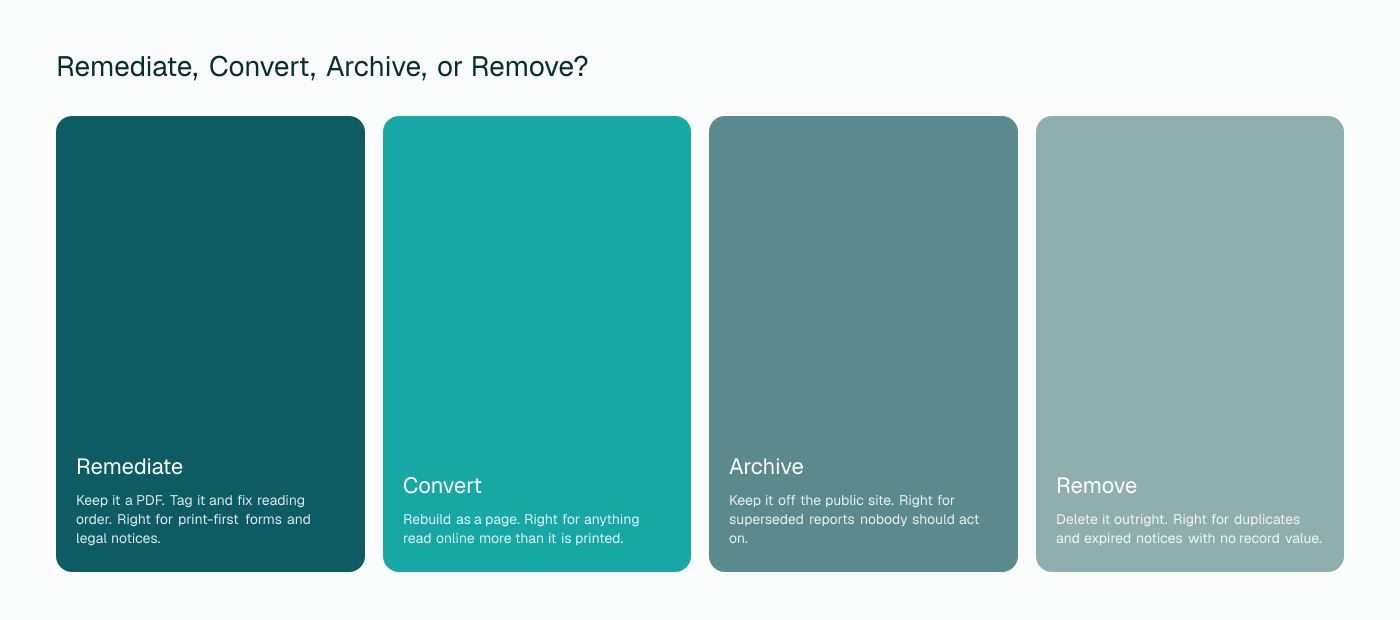
Ask one question first: does this document exist to be read on a screen, or to be printed, signed, or filed? A W-9 form, a notarized affidavit, a document someone has to physically sign and mail back, those stay PDFs, and the job is tagging them correctly. A benefits overview, a step-by-step application guide, a program eligibility page, those are read, not filed, and HTML almost always serves the reader better.
A second signal worth checking: how often does the content change? A PDF that gets re-uploaded every few months because a phone number or a fee changed is a PDF fighting its own format. A WordPress page with the same content takes thirty seconds to edit. The PDF version takes a re-export, a re-upload, and, if anyone remembers, a re-tagging pass that frequently gets skipped the second and third time around.
3What a Proper PDF-to-WordPress Conversion Includes
Converting a PDF isn't copying the text into a new page and calling it done. A real conversion rebuilds the document's actual structure, the parts a PDF often fakes visually without ever encoding them in a way software can read.
A real heading hierarchy
What looked like a bold, larger-font section title in the PDF becomes an actual H2 or H3 in the page, not just bold text sitting in a paragraph.
Lists that are actually lists
Numbered steps and bullet points get rebuilt as list elements a screen reader announces as a list, with a count, instead of a run of text with dashes in front of it.
Tables with real headers
A data table keeps its header row tied to its data cells programmatically, so a screen reader user can tell which column they're in without re-reading the whole row.
Alt text on every image that carries meaning
A chart, a diagram, a photo used as evidence of something, gets a description written for the page it's on, not a generic AI guess at what the pixels show.
4Rebuilding Headings, Lists, Tables, Links, Images, and Downloads as Real HTML
Links deserve their own line here, because PDFs handle them badly in a way most people never notice. A URL printed as plain text in a PDF, "visit cityname.gov/permits," isn't a link at all unless someone specifically built it as one. A screen reader reads it as a string of characters, not a destination. On the converted page, that becomes a real anchor tag with descriptive link text, "apply for a permit," not a raw URL a user has to type manually.
Downloads work the other direction. If the content references a form that genuinely needs to stay a fillable PDF, the converted page keeps a clearly labeled download link to it, not a buried reference. The page absorbs the explanatory content; the PDF keeps doing the one job it's actually suited for.
5How to Preserve the Original PDF Without Creating a Compliance Gap
Converting a document to a page doesn't mean the PDF has to disappear. Plenty of residents still want a printable or offline copy, and some use cases genuinely need one. The mistake is leaving that original PDF linked from anywhere a resident might land on it directly, like a search result or an old bookmark, without giving it its own accessibility treatment.
The safer pattern: the WordPress page becomes the primary, indexed, accessible version. The PDF becomes a secondary "download a printable copy" link from that page, tagged well enough to pass its own WCAG check, since it's still a document the public can reach. A PDF with no public link pointing to it directly carries far less exposure than one still sitting in search results as the only version of the content that exists.
6WCAG 2.1 AA Checks Before Publishing
A conversion isn't finished when the text is on the page. Run through this before it goes live:
- Navigate the entire page with a keyboard only, tab key and arrows, no mouse.
- Run an automated contrast check against every text and background color pulled from the original PDF's design.
- Confirm the heading outline reads logically with no skipped levels, H2 straight to H4 with nothing between.
- Open it on an actual phone with a screen reader running, not just a desktop simulation.
7Common Conversion Mistakes
Final Takeaway
Not every PDF is the problem. The ones that are read online, over and over, by residents trying to get something done, are the ones where remediation is a patch and conversion is the actual fix. For a real worked example, see how we turned a 90-page budget PDF into a page people can read.
Find out which of your PDFs should become pages
Our PDF-to-Page tool converts your highest-traffic documents into accessible WordPress pages, with the original kept as a labeled download.
See PDF to WordPress Page