How to Convert a PDF into an Accessible WordPress Page Without Breaking WCAG 2.1 AA
Copy the text out of a PDF, paste it into a new page, hit publish. That workflow takes ten minutes and produces a page that fails almost every WCAG 2.1 AA check the original PDF also failed. Here's the version that actually works.
The goal of a conversion isn't a page that looks like the PDF. It's a page that preserves the document's actual hierarchy, headings, lists, tables, links, meaning, while gaining everything HTML does better: keyboard navigation, screen reader support, mobile reflow, and a URL a search engine can actually index. Get the workflow right once and it holds for every document after it.
1Start With a PDF Inventory and Prioritize Public-Service Content
Before converting anything, know what you're converting and why. Pull a list of every PDF linked from the public site, sorted by page views if your analytics track outbound PDF clicks, or by which department owns it if they don't. The documents residents actually use to accomplish something, apply for a permit, check a benefit, read a public notice, go first. A twelve-page zoning amendment nobody's opened in two years goes last, or not at all.
This step matters because conversion takes real time per document. Converting the wrong ten PDFs first, the ones with low traffic and low legal exposure, burns a budget that should have gone toward the handful of documents actually driving resident complaints and accessibility risk.
2Extract Text and Run OCR for Image-Only Scans
Two very different starting points exist under the single label "PDF." A document exported from Word or InDesign usually has real, selectable text underneath its layout, which extracts cleanly. A scanned paper document, common with older forms and historical records, is often just a photograph of a page with no underlying text at all, which means extraction returns nothing until OCR runs first.
Run OCR before anything else touches a scanned document. Skipping it doesn't just lose text, it produces a conversion that looks complete but is actually an image pasted into a page, the exact mistake covered further down. Check the OCR output against the original for misread characters, especially in numbers, dates, and names, since OCR engines routinely confuse similar-looking digits and letters.
3Turn Document Headings Into a Logical H1 to H6 Hierarchy
A PDF's visual section titles, usually bigger font, bold, maybe a different color, need to become real heading tags, and they need to nest correctly. The page title becomes the H1. Major sections become H2. Subsections under those become H3, not another H2 and not a skip straight to H4. A screen reader user often navigates a long page by jumping between headings alone, and a broken hierarchy makes that navigation misleading rather than just imperfect.
Watch for a specific PDF habit: using font size alone to signal importance, with no semantic structure behind it at all. A "heading" that's just 14-point bold text in a paragraph carries zero information to a screen reader. If you can't tell from the PDF's structure whether something was meant as a heading or just emphasized text, read the surrounding content for the answer rather than guessing from formatting alone.
4Convert Lists, Tables, Links, and Callouts Into Native WordPress Blocks
Gutenberg has a block for almost everything a government document needs: a List block for numbered steps, a Table block with real header rows, a Quote or callout-style block for a highlighted notice. Using the actual block, not a paragraph block styled to look similar, is what makes the structure machine-readable instead of just visually similar.
Links need rewriting, not just pasting. A URL that appeared as plain text in the PDF becomes a real hyperlink with descriptive text, "download the application form" rather than a bare address. A phone number becomes a tap-to-call link, which matters more on mobile than it ever did in print.
5Add Meaningful Alt Text to Informative Images
A chart, a map, a photo used as evidence of a claim in the document, each needs alt text written for the specific job it's doing on this specific page, not a generic caption. A budget chart showing a department's spending breakdown needs the actual numbers or trend stated in the alt text, not "chart showing budget data."
Decorative elements, a thin divider line, a repeated background pattern lifted from the PDF's design, get empty alt text, not a description. Describing a divider line to a screen reader user wastes their time and adds noise for no benefit.
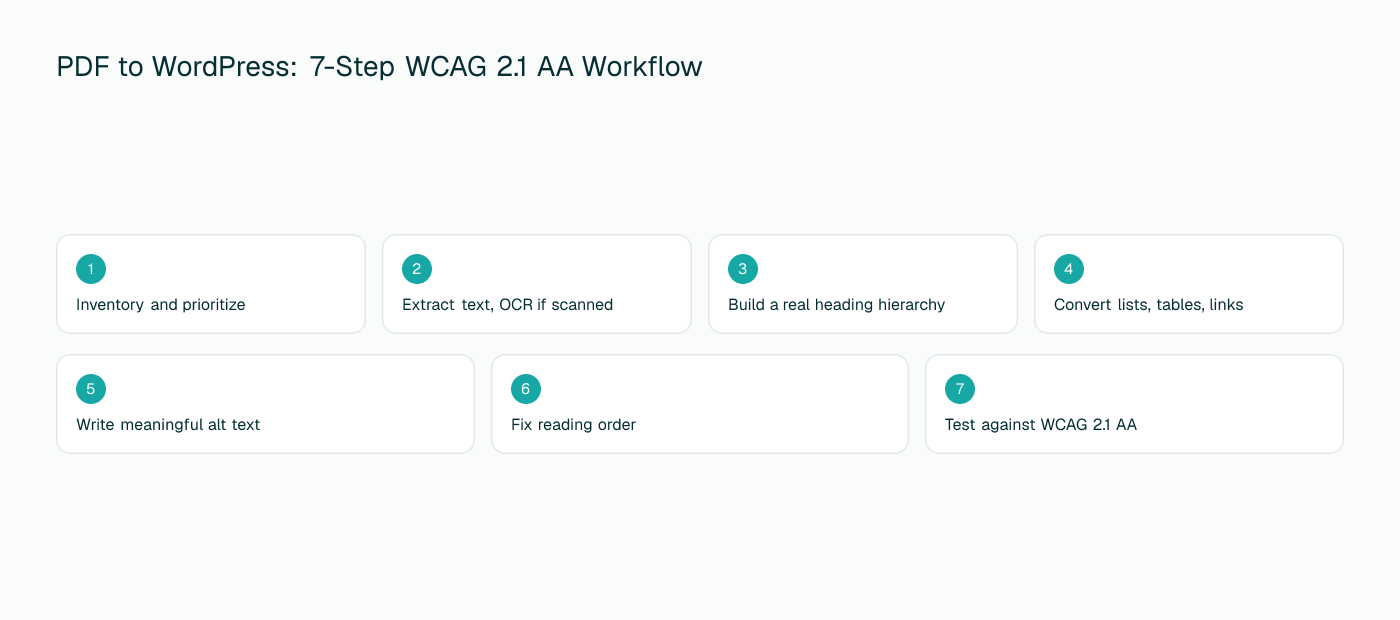
6Fix Reading Order Before It Becomes Page Structure
A multi-column PDF layout can extract text in an order that made visual sense on the original page but reads as nonsense once it's linear, a sidebar sentence landing in the middle of an unrelated paragraph, a footnote appearing before the text it footnotes. Fix this before building out blocks, not after. Reordering content after it's already been split into headings, lists, and tables means redoing structural work you already finished once.
7Publish an Accessible Draft, Review It, Then Retain or Retire the Original PDF
Don't publish straight from an automated extraction. Save the converted content as a draft, read it top to bottom as if you were the intended audience, and specifically flag anything the conversion process might have guessed at: an ambiguous heading level, a table whose columns don't quite map cleanly, an image whose purpose wasn't obvious from the surrounding text. A human reviewing those specific uncertain spots catches far more than a human re-reading the entire document for no particular reason.
Once the page is live and verified, decide whether the original PDF stays linked as a downloadable copy or gets retired. If it stays, it needs its own tagging pass, since a resident can still land on it directly through search or an old bookmark.
8Test Against WCAG 2.1 AA Before It Ships
Keyboard
Tab through every link, button, and form field in a logical order with no dead ends or invisible focus.
Headings
Pull up a heading outline view and confirm it reads as a sensible table of contents on its own.
Links
Every link makes sense read out of context, with no "click here" or bare URLs left over from the original.
Contrast
Check every text and background color combination carried over from the PDF's original design against the 4.5:1 minimum.
Tables
Confirm header cells are marked as headers, not just bold text in a regular cell.
Images
Every informative image has real alt text; every decorative one is marked empty, not missing.
Forms
If the page includes an embedded form, every field has a real, associated label, not placeholder text standing in for one.
Final Takeaway
The workflow is longer than copy-and-paste for a reason: every extra step is doing work a screen reader, a keyboard user, or a mobile browser depends on. Once you've run one document through it end to end, the next one goes faster, and the template you build from it is what actually scales across a document library. See how we chose between Gutenberg blocks and classic HTML for a converted PDF.
Skip the manual rebuild
Our PDF-to-Page tool handles extraction, heading structure, and block conversion automatically, then flags exactly what needs a human review pass.
See PDF to WordPress Page